
AI furniture scene generator
Turn a furniture product photo into an interior-scene visual
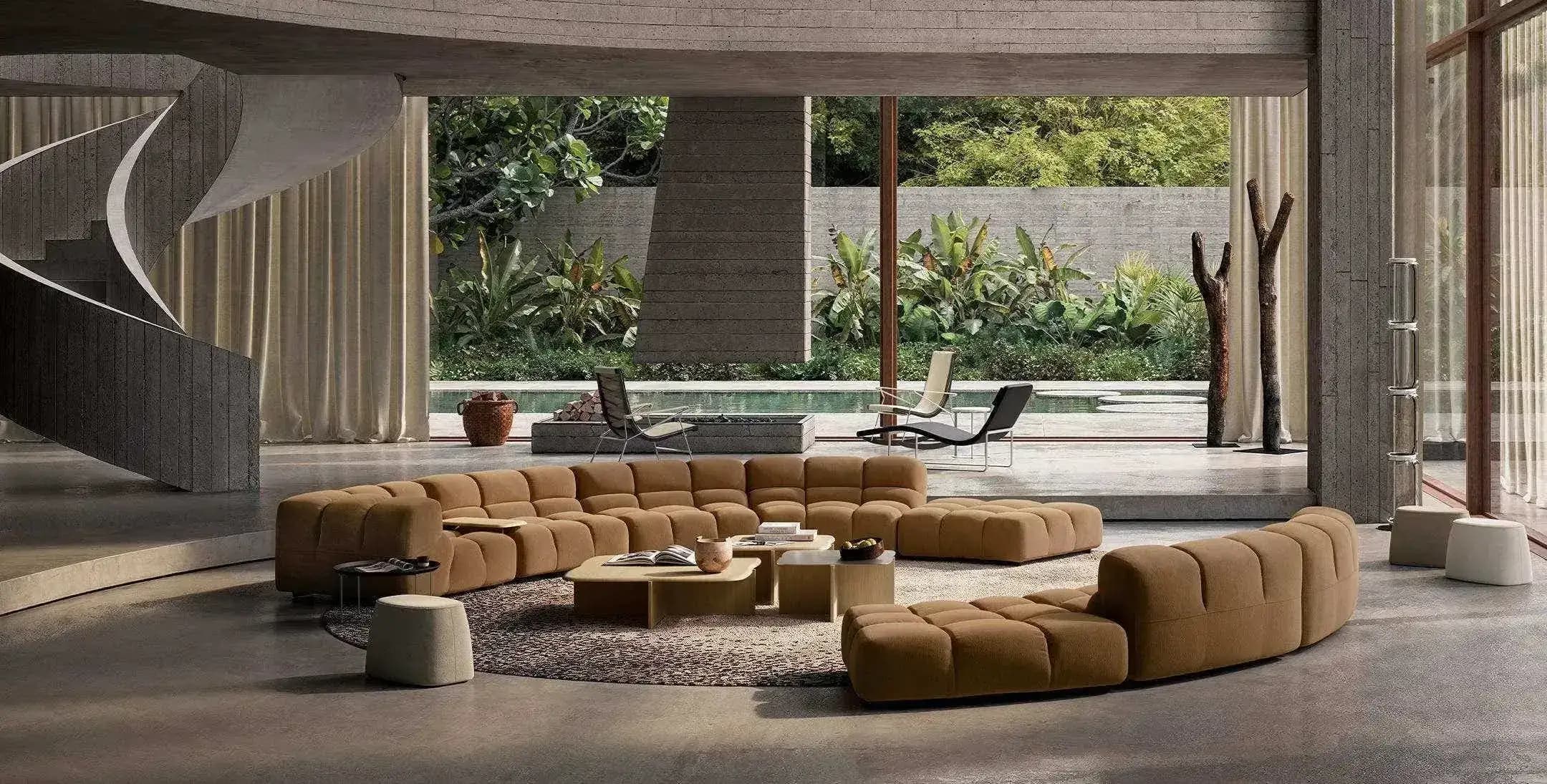
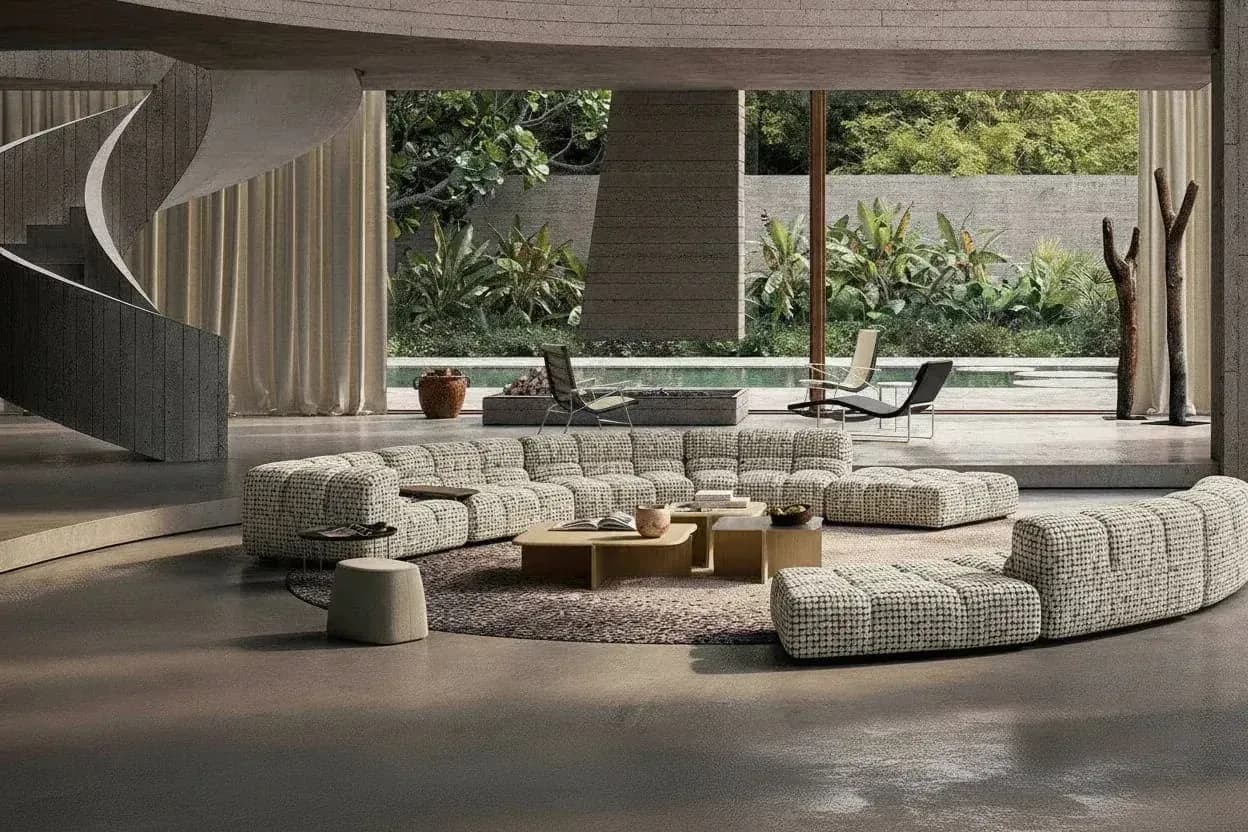
AI furniture scene generation places a standalone product photo into a new interior environment to explore room types, styles, lighting, and composition. XinVise offers multiple generation modes and an interactive layout editor so furniture teams can prepare scene concepts and marketing candidates before a formal shoot or final retouching.
By XinVise TeamPublished Updated
Built for this workflow
- Explore room, style, and lighting directions
- Choose from three generation modes
- Arrange products in an interactive layout editor
How is a furniture scene different from background removal?
A simple background replacement focuses on isolating the subject. A convincing furniture room scene also needs believable scale, floor contact, perspective, shadow direction, and composition. The goal is to place the product in a useful visual context, not merely paste it onto another image. The public wizard uses an interactive layout editor rather than a free-form canvas.
Where can ecommerce and brand teams use scene candidates?
One product image can be explored in different rooms and styles for catalog planning, product-page drafts, social content, and sales presentations. For a larger set, consistency depends on a fixed input specification, repeatable scene directions, and a human quality-control standard. Generation requires sign-in and available credits; invalid image or scene parameters, rate limits, and provider failures can interrupt a request, so retry or replace the input before review.
- Lifestyle scenes for sofas, chairs, beds, tables, and storage furniture
- Visual-direction review before a launch
- Composition and whitespace options for different channels
- Batch scene concepts for enterprise catalogs
What should be checked before publication?
Review the product outline, proportions, material, perspective, contact shadows, logos, and distinctive features. If a generated scene changes the identity of the product, regenerate or retouch it rather than publishing it only because the room looks attractive.
Recommended process
- 01
Prepare the product image
Use a complete, sharp furniture photo without major occlusion.
- 02
Define the scene direction
Choose the room, style, lighting, and intended channel without mixing conflicting requirements.
- 03
Generate candidates
Compare modes for composition and product preservation.
- 04
Review and lay out
Verify identity, perspective, and shadow before adapting the image to channel dimensions.
Workflow comparison
| Method | Main strength | Best fit |
|---|---|---|
| AI scene generation | Rapid exploration of rooms and visual directions | Concepts, content drafts, and evaluation candidates |
| Studio or location shoot | Control over the real product, lighting, and props | Hero campaigns and content with strict authenticity needs |
| 3D rendering | Controlled camera and space from a defined model | Projects with reliable 3D assets and fixed views |
Frequently asked questions
Do I need a 3D furniture model first?
No 3D model is required for the photo-based scene workflow. A 3D pipeline can be a better fit when exact dimensions, fixed cameras, or consistent multi-angle output are mandatory.
Can I generate different rooms and lighting?
The current public workflow supports multiple room, style, and lighting directions and offers different generation modes.
Can the workflow handle many SKUs?
XinVise can evaluate batch production for enterprise teams. Before scaling, define source-image rules, scene templates, output dimensions, and quality checks.
Can generated scenes be used for ecommerce?
They can be ecommerce candidates, but a reviewer should verify product identity, material, proportions, trademarks, and the platform's content rules before publication.
Place one furniture photo into a new room
Choose a room and a clear visual direction to create the first scene candidates.
Try scene generation